Draw a diagram on top of a PDF
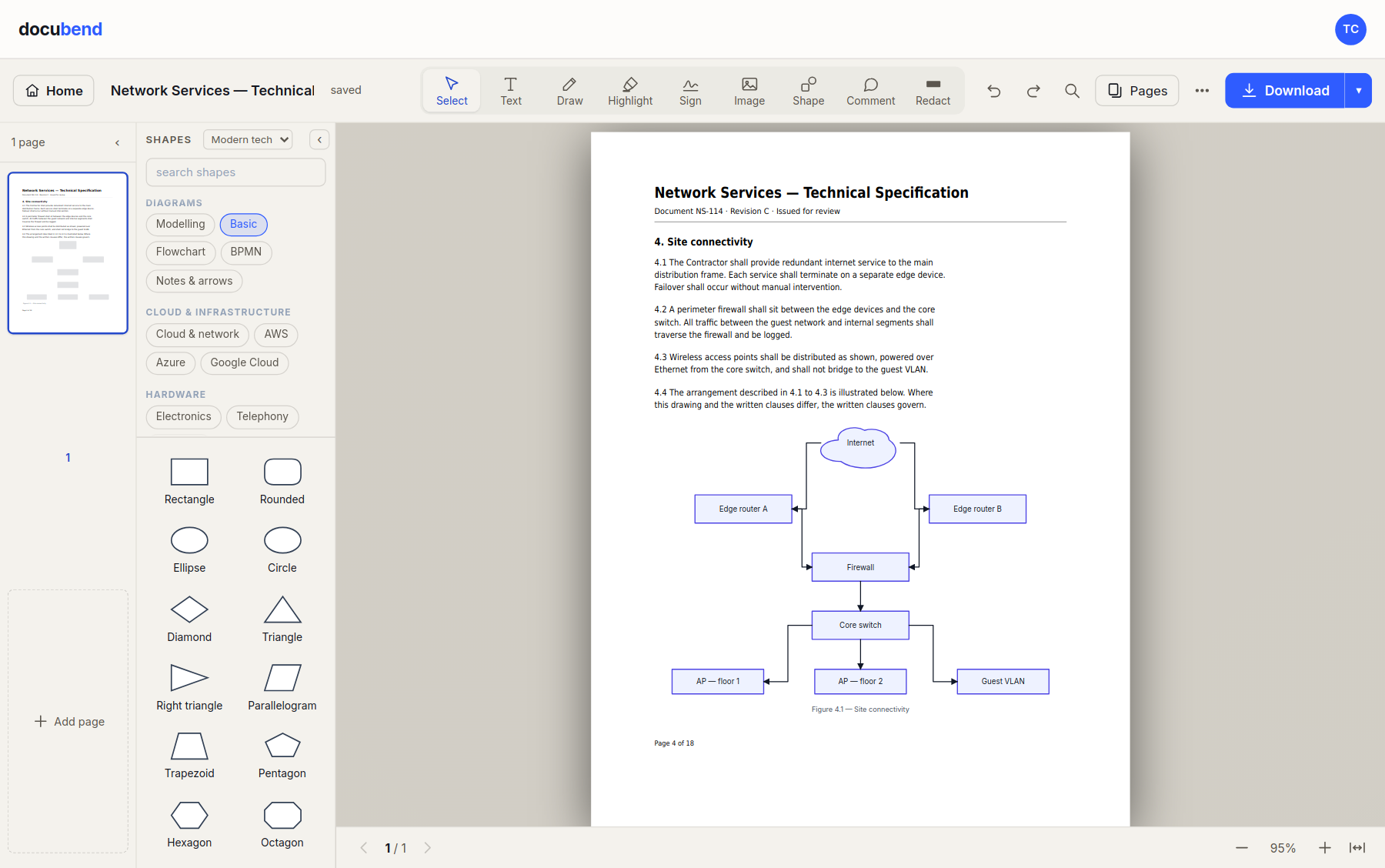
Not a pen and a text box — a real diagramming surface, on the page of the document itself. Boxes that snap, arrows that stay attached to them and route around whatever is in the way, and over 400 stencils to build from.
Start the free trial 14 days, then $9 a month. Cancel before it ends and you pay nothing.
What this actually is
Most PDF editors give you a highlighter, a comment and a box to type in. That is enough to mark a document up and not enough to explain anything with it. If you have ever needed to put an architecture on page four of a specification, sketch the flow of an approval next to the clause that describes it, or lay a floor plan over a scanned survey, you have had to do it in a second application and paste a flat picture back in — where it cannot be edited, cannot be searched, and goes stale the moment the drawing does.
This is the diagramming tool in the PDF editor. The same surface, the same file, one download at the end. Open the document, choose Shape, and the library opens over the page you are looking at.
How it works
- Open a PDF, or start a blank board if there is nothing to draw on yet.
- Choose Shape to open the library, and drag what you need onto the page.
- Drag from the edge of one shape to another to connect them. The connector stays attached to both.
- Move anything. The arrows follow, and re-route around what is now in the way.
- Download the result as a PDF, a PNG or an SVG.
Arrows that go around things, not through them
This is the part that separates a diagram tool from a drawing tool. A connector here is attached to the shapes at its ends rather than to a pair of coordinates, so moving a box moves its arrows. And when the straight path between two shapes would cross a third, the route is recalculated: candidate paths are scored by how many things they cut through and how many corners they take, and the winner stands clear of every shape it passes. You move a box, the picture stays readable, and you do not spend the afternoon dragging line segments.
Over 400 stencils, in twenty-five categories
Drawn as vectors rather than shipped as icons, so they stay sharp at any size and take their colours from the drawing they are in. The library covers AWS, Azure and Google Cloud, general cloud and network, AI and agent architecture, app development, UML-style modelling, BPMN, flowchart, electronics and electrical, telephony, floor plans and furniture, workspace and consumer objects, interface elements, people, vehicles and street furniture, and a few for the fun of it.
Six looks to draw them in, from a plain modern set to a mid-century one, and switching between them restyles the whole drawing rather than asking you to redraw it.
Diagrams as text, in and out
Diagrams travel as mermaid — in a README, a ticket, a chat message, or out of whatever generated one. Paste mermaid in and it becomes editable shapes; copy any drawing back out as mermaid and it goes wherever text goes.
Flowcharts, specifically. Mermaid's other types — sequence, class, state, gantt, mindmap — are not boxes and arrows, and turning one into loose rectangles would produce something that looks like a diagram and means nothing, so they are refused by name instead. Mermaid also has no coordinates, so an imported diagram is laid out on arrival: what survives the round trip is the structure, not your arrangement. Drawings also come in from .drawio and Visio files.
What you take away
A PDF, a PNG or an SVG. The PDF and the SVG are vector: real shapes and real text rather than a picture of them, so they print at full resolution, scale to a wall, and the words in them can still be selected, searched and copied. What you drew on a PDF is written into the file as artwork on the page — not flattened into an image of the page.
What it costs
Diagramming is the part of docubend that needs an account, because it needs somewhere for the document to live between sittings — and a diagram you cannot come back to is a sketch. It is $9 a month, and every subscription starts with a free trial: a card is collected, nothing is charged until the trial ends, and cancelling before then costs nothing.
The same account brings version history on every document, search inside your files, true redaction that removes the text from the file rather than covering it up, sharing and comments, reading a scanned page without a daily cap, files up to 512 MB and 5 GB kept.
Questions
Is this free?
No, and it is the only part of docubend that is not. Every subscription starts with a free trial, and the sixteen PDF tools and the editor stay free with no account at all — what a subscription adds is somewhere for the document to live, which is what a diagram you come back to needs.
Can I draw on a PDF, or only on a blank board?
Both, and the PDF is the interesting one. Open a PDF, choose Shape, and the library opens over the document — the shapes land on the page, at the place on the page you put them, and they stay there. A blank board is the same surface with nothing under it.
Does it change the PDF underneath?
Not while you are working: the shapes are objects on top of the page and you can move, restyle or delete any of them afterwards. When you download a PDF, what you drew is written into the file as vector artwork, so it prints at full resolution rather than as a picture of itself.
Do the arrows move when I move a box?
Yes. A connector is attached to the shapes at its ends, not to a pair of coordinates, so dragging a box drags its arrows with it — and the arrow re-routes around whatever is now in the way instead of running through it.
Can I bring in a diagram I already have?
Mermaid text, yes — paste a flowchart and it becomes editable shapes, and any drawing can be copied back out as mermaid. Sequence, class, state, gantt and mindmap diagrams are refused by name rather than turned into rectangles that would mean nothing. Drawings can also be imported from .drawio and Visio files.
What can I take away at the end?
PDF, PNG or SVG. The PDF and the SVG are vector — real shapes and real text, not an image — so they stay sharp at any size and the text in them can still be selected and searched.